In today's digital landscape, where information and transactions occur at lightning speed, ensuring the authenticity of a website is crucial for both personal safety and data security. The rise of cyber threats has made it necessary for users to be vigilant about the sites they visit, especially when sharing sensitive information. This blog post will guide you on how to verify website authenticity, focusing on HTTPS and the lock icon, along with examples and step-by-step solutions.
Understanding HTTPS and the Lock Icon
HTTPS (HyperText Transfer Protocol Secure) is an extension of HTTP and is essential for secure communication over a computer network. The 'S' stands for 'Secure' and indicates that the website is using encryption to protect data exchanged between the user's browser and the web server. This is particularly important when conducting financial transactions, entering personal information, or accessing sensitive accounts.
The lock icon displayed in the address bar of your web browser is another indicator of a website’s authenticity. It signifies that the connection is secure and that the website has been verified by a trusted certificate authority (CA). However, simply seeing the lock icon is not enough; it's essential to understand what it means and how to verify its authenticity.
Why HTTPS Matters
Data Encryption: HTTPS encrypts the data sent between the browser and the server, making it difficult for hackers to intercept or tamper with the information.
User Trust: Websites using HTTPS are generally considered more trustworthy. Users are more likely to share personal information on a secure site.
Search Engine Ranking: Search engines like Google favor secure websites in their rankings, making HTTPS essential for SEO.
Step-by-Step Guide to Verifying Website Authenticity
Step 1: Check the URL
The first step to verifying a website's authenticity is to examine the URL in the address bar. Here’s how to do it:
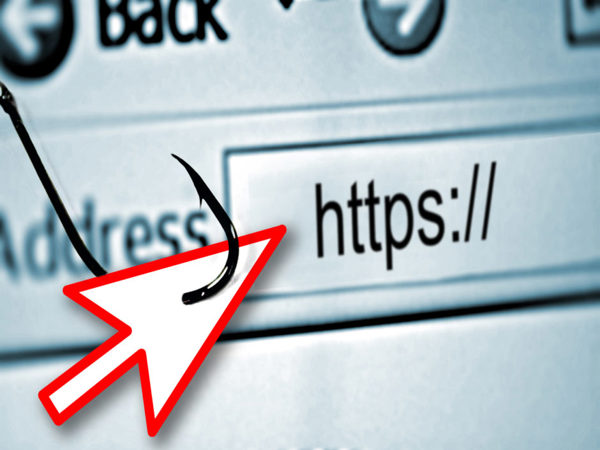
Ensure the URL starts with "https://" rather than just "http://". The 's' indicates that the website is using a secure connection.
Avoid entering sensitive information on sites that do not use HTTPS.
Step 2: Look for the Lock Icon
Next, locate the lock icon in the address bar. Here’s what to do:
If the lock icon is present, click on it to view more information about the site’s security.
If the lock is green or closed, the website is likely secure. However, if the icon is gray or appears as an open lock, there might be issues with the site’s security.
Step 3: View Certificate Details
To further verify the authenticity of a website, you can view its security certificate. Here’s how:
Click on the lock icon in the address bar.
Select “Certificate” or “Connection is secure” (depending on your browser).
Review the certificate details: Check the issuer of the certificate (it should be a trusted Certificate Authority like DigiCert, GlobalSign, or Let’s Encrypt) and ensure that the certificate is valid and not expired.
- Look for the “Issued to” field, which should match the domain name of the website.
- Check the “Valid from” and “Valid to” dates to ensure the certificate is current.
Step 4: Check for Mixed Content
Sometimes, a secure website may include resources (like images or scripts) from non-secure sources. This is known as mixed content. Here’s how to check:
- Open the developer tools in your browser (usually F12 or right-click > Inspect).
- Navigate to the “Console” tab to check for any mixed content warnings.
If the site has mixed content, it could be a red flag indicating potential security vulnerabilities.
Step 5: Research the Website
Finally, it’s wise to conduct some additional research to verify the website’s legitimacy:
Search for reviews: Look for reviews or feedback from other users about their experiences with the website.
Check the domain age: Use online tools like WHOIS lookup to find out when the domain was registered. Recently registered domains may be a sign of a potentially fraudulent site.
Look for contact information: Legitimate websites typically provide clear contact information, including phone numbers and email addresses.
Examples of Websites with HTTPS
Online Retailers: Major retailers like Amazon and eBay use HTTPS to secure transactions and customer data.
Banking Sites: Most banking institutions, such as Chase and Bank of America, utilize HTTPS for secure online banking.
Social Media: Platforms like Facebook and Twitter also employ HTTPS to protect user privacy.
Conclusion
Verifying the authenticity of a website is essential in today’s digital world. By checking for HTTPS, understanding the lock icon, viewing certificate details, and conducting further research, you can protect yourself from cyber threats. Always prioritize secure connections, especially when sharing sensitive information.
.jpg)